Week 03: AD + Phishing Analysis: Two Pillars of Blue Team Work
This week I finally made it into the phishing analysis section of BTL1! The stuff I’ve been waiting for! But before diving into emails, I had to get through Active Directory fundamentals. Turns out, understanding AD isn’t just IT admin work. It’s essential for SOC analysts investigating compromised accounts and lateral movement. I’m really enjoying combining these two critical skills: understanding how authentication works in enterprise environments AND how attackers try to steal those credentials. Let’s dive into what I learned this week!
🔵 What I Learned This Week
This week I finally made it into the phishing analysis section of BTL1. The stuff I’ve been waiting for! But before diving into emails, I had to get through Active Directory fundamentals. Turns out, understanding AD isn’t just IT admin work. It’s essential for SOC analysts investigating compromised accounts and lateral movement.
Querying Active Directory for Investigations
Active Directory is a service that helps manage and organize IT objects like users, computers, printers, and more. It centralizes the enforcement of rules, management of these items, and overall organization. Many companies use AD as the backbone of their IT infrastructure.
Let’s say we’re a SOC analyst and the SIEM alerts us: “HEY! The users ‘John Doe’, ‘Sarah Johnson’, and ‘Jackson Kelly’ have been locked out from multiple failed password attempts from the same IP in our network. Even worse, one user account ‘admin’ got logged into by this IP!” We need to investigate. We already know someone is trying to brute force accounts, but what time was this happening? Did they lock out any other accounts? When were they last logged on? Did the admin account modify any other users? We can use PowerShell queries to find these things out!
The commands that matter:
# Check a specific user's account status and recent activity
Get-ADUser -Identity "admin" -Properties LastLogonDate,LockedOut,Modified,PasswordExpired,PasswordLastSet

# Find ALL locked out accounts in the domain
Search-ADAccount -LockedOut | Select-Object Name,LockedOut,LastLogonDate

# Check what groups a compromised account belongs to (did they have admin access?)
Get-ADPrincipalGroupMembership -Identity "admin" | Select-Object Name

# See recently modified user accounts (did the attacker change anything?)
Get-ADUser -Filter {Modified -gt "2025-12-2"} -Properties Modified | Select-Object Name,Modified
With these commands, we can check the admin account’s last logon time to correlate with our alert, see what groups they belong to (did the attacker just get domain admin access?), and check if any accounts were recently modified. We can also pull all locked-out accounts to see the full scope of the brute force attempt. Once we piece together the timeline, we can isolate the source IP, block it, document everything, and escalate if needed.
How this applies to SOC work: These queries are literally what you’d run during an active investigation. If I see an alert for suspicious authentication activity, my first move is querying the affected accounts to understand what happened, when it happened, and how bad it is. Save these in your toolkit.
Credential Harvesting Emails
Credential harvesting emails are exactly what they sound like: emails designed to steal your login credentials. Attackers create convincing messages that impersonate legitimate companies, trying to get you to hand over your username, password, billing info, or call a fake support number. Once they have your creds, they can attempt credential stuffing attacks, trying those same credentials across dozens of other services since most people reuse passwords.
Let me break down a real example. Check out this phishing email pretending to be Amazon:
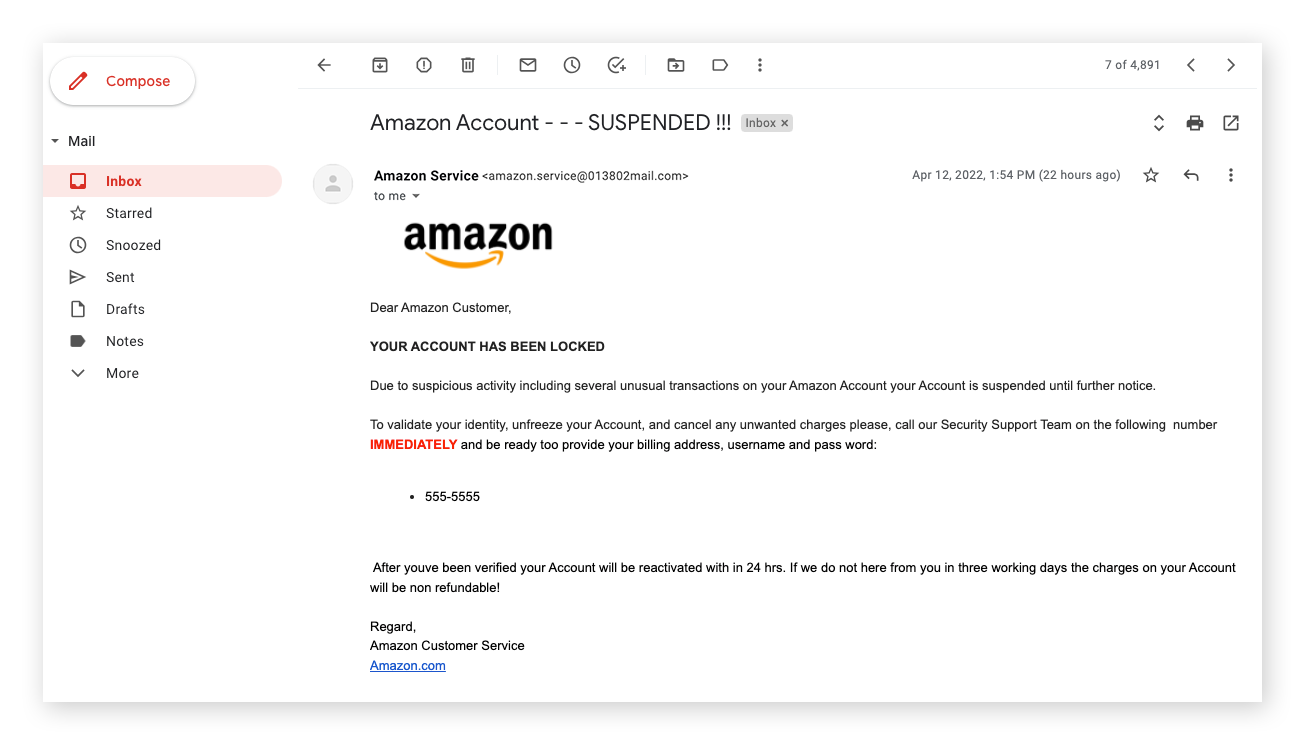
Let’s count the red flags:
1. The sender domain is completely wrong. Look at the email address: amazon.service@013802mail.com. That’s not Amazon. Amazon emails come from domains like @amazon.com or @email.amazon.com. The “013802mail.com” domain is a dead giveaway this is fake. This is the first thing I’d check as a SOC analyst.
2. Generic greeting. “Dear Amazon Customer” instead of your actual name. Amazon knows your name. They use it. Phishing emails often use generic greetings because they’re blasting thousands of people at once.
3. Urgency and fear tactics. “YOUR ACCOUNT HAS BEEN LOCKED” in bold, “IMMEDIATELY” in red, and a threat that charges will be “non refundable” if you don’t respond in three days. Attackers want you panicked and not thinking clearly. This is textbook social engineering.
4. Asking for sensitive information over the phone. They want you to call and “provide your billing address, username and pass word.” No legitimate company asks for your password over the phone. Ever. This is actually a vishing (voice phishing) attempt combined with the phishing email.
5. Spelling and grammar errors everywhere.
- “pass word” (two words)
- “too provide” (should be “to”)
- “youve” (missing apostrophe)
- “here from you” (should be “hear”)
- “Regard” (should be “Regards”)
Legitimate companies have entire teams reviewing customer communications. These errors are a major red flag.
6. Suspicious subject line. “Amazon Account - - - SUSPENDED !!!” with excessive punctuation. Professional companies don’t use multiple exclamation points and dashes in subject lines.
How this applies to SOC work: When triaging phishing emails in a SOC, I’d run through this exact checklist. Check the sender domain first (that’s your quickest filter). Look for urgency language and threats. Check if they’re asking for sensitive info. And honestly, grammar errors are a surprisingly reliable indicator. If an email fails multiple checks, it’s getting flagged as malicious and the user’s getting a heads up not to engage.
Typosquatting & Homoglyphs
Typosquatting is when attackers register domains that look almost identical to legitimate ones at a quick glance. Check these out:
- g00gle.com (the “o”s are actually zeros)
- gooogle.com (extra “o”)
- googIe.com (the last “l” is actually a capital “I”)
At a glance, they all look somewhat legitimate. It’s only when you really focus on them that you can spot the issues. Attackers are counting on you skimming.
Homoglyphs take this even further. These are characters from different Unicode writing systems that look identical to regular letters. For example, the Latin “o” and the Cyrillic “о” look exactly the same but have different Unicode values, meaning they’re technically different characters. So google.com with a Latin “o” and gооgle.com with Cyrillic “о”s are two completely different domains. Your brain sees “google” but your browser goes somewhere malicious.
How this applies to SOC work: When analyzing suspicious emails or URLs, always check the actual domain character by character. Don’t trust what it looks like. Verify what it actually is. Copy the URL into a text editor, use URL analysis tools, or check the raw email headers. These techniques exist specifically to exploit how fast we process information, so slow down when something feels off.
Kerberos Authentication (The Ticket System)
Kerberos is the authentication protocol Active Directory uses, and honestly, the ticket system took me a minute to wrap my head around. Here’s how it works with a simple example:
Sarah logs into her computer. Her machine contacts the Key Distribution Center (KDC) and requests a Ticket Granting Ticket (TGT). Think of the TGT as an all-day wristband at an amusement park. If her credentials check out, she gets the TGT.
Now Sarah wants to check her email. She doesn’t authenticate directly to the email server. Instead, she presents her TGT to the Ticket Granting Service (TGS) and says “I need access to email.” The TGS gives her a service ticket specifically for email. She hands that service ticket to the email server, and now she’s in. Need to access a file share next? Same process: present TGT, get a new service ticket, access the resource.
The whole thing is encrypted. Your password never actually travels across the network after that initial authentication.
Why SOC analysts need to understand this: Attackers abuse Kerberos through techniques like pass-the-ticket (stealing someone’s TGT to impersonate them) or golden ticket attacks (forging a TGT that gives domain admin access to everything). If I don’t understand how legitimate authentication works, I can’t spot when it’s being abused. When you see alerts about abnormal Kerberos activity, you need to know what “normal” looks like first.
🚧 The Challenge
What tripped me up: Honestly, Kerberos felt really abstract at first. I understood the words (TGT, TGS, service tickets) but I couldn’t visualize the actual flow. Why does Sarah need to go back to the KDC every time she wants to access something new? Why not just authenticate once and be done? It felt overly complicated.
How I worked through it: The amusement park analogy saved me. Once I started thinking of the TGT as a wristband and service tickets as individual ride tickets, everything clicked. You get the wristband once (authenticate), then you use it to grab ride tickets (service tickets) for each ride (service) you want to access. The park doesn’t hand you tickets for every ride upfront. You request them as you need them. That mental model made Kerberos go from confusing to intuitive.
💡 Quick Wins
Here are actionable takeaways from this week:
- AD Investigation Starter Query: Memorize
Get-ADUser -Identity "username" -Properties LastLogonDate,LockedOut,Modified. This is your first move when investigating a potentially compromised account. - Typosquatting Check: Before trusting any domain, slow down and character-by-character verify it. Attackers count on you skimming.
- Tracking Pixel Awareness: If an email seems like random spam with no clear ask, it might be recon. Attackers are checking if your inbox is active before launching the real campaign.
- Kerberos Mental Model: Think of TGT as your “all-day wristband” and service tickets as “ride tickets.” You show the wristband to get ride tickets, then show ride tickets to access individual services.
- Phishing Email Checklist: Sender domain wrong? Generic greeting? Urgency/threats? Asking for passwords? Grammar errors? If you hit 2-3 of these, you’re probably looking at a phish.
What’s Next
I’m diving deeper into phishing analysis next week, specifically looking at how attackers bypass email security controls and the actual process of analyzing malicious attachments. The hands-on email investigation stuff is what I’ve been most excited about, so expect a more technical breakdown. Stay tuned!
Wrap-Up
Week 03 was all about building the foundational skills that make a strong SOC analyst: understanding how enterprise authentication works through Active Directory and Kerberos, and knowing how to spot credential harvesting attempts through phishing analysis. These two skills complement each other perfectly. You can’t defend what you don’t understand, and you can’t spot attacks if you don’t know what normal looks like. I hope you enjoyed this week’s letter documenting my BTL1 journey. Keep learning, stay vigilant, and never forget to BTuff!